
In the next post, we will describe the steps of making a complete family home smart, based specifically on Shelly relays. It is important to note that we started designing the smart home system when the foundations of the building were laid. So, by the time it was time for the electrical installation, we were able to provide the electrician with an accurate and detailed technical description so that the network design would meet all needs.
In our previous posts, we have already delved into the mysteries of modernizing underfloor heating. With Honeywell controller and Home Assistant. We also showed how to build our garden house. monitoring with a security camera system.
In addition, we have also dealt with Shelly-based systems. In one of our case studies You could follow along to see how to modernize underfloor heating with smart relays and control it with logic implemented on Home Assistant principles.
But let's not rush ahead so much! Let's see what tools we used to put together the final system.
During the design, we considered a star-point connection, where we would have placed the Shellys in the switch cabinet, connected to a DIN rail. However, from an aesthetic and functional point of view, we wanted to solve this with Shelly 4 Pro, but we could not obtain this device in sufficient quantities by the given deadline. The placement of the 3D printed Shelly 1 and Shelly 2.5 DIN rail mount holders is also too space-consuming if we want to ensure proper ventilation and avoid overheating of the devices. So in the end, only 3 Shellys were placed in the switch box, and the rest were placed in the junction boxes behind the switches.
Connecting the Shellys
Lighting
Lighting was an important aspect for the client, not only for control reasons, but also from a security perspective. Of course, with proper regulation, you can simulate presence with the lights, but it doesn't hurt to have full control. We placed a Shelly 1 relay behind each single switch and a Shelly 2.5 relay behind each double switch. An important criterion was that even though the home should be smart, the manual switches should still be retained. In most places, we recommended the push-button design for installation, as this gives the greatest freedom for later configurations, and the user experience is also much more pleasant. It should not happen that the light turns on when it is off, and at other times the bulb that is physically turned on goes out. The push-button has one state, so each press causes a change.
The user specifically wanted alternative switches in the living room. The point of this is to be able to control the consumer with two separate switches from different ends of the room. This can be achieved with a Shelly 1 and at least two push buttons. You can see the schematic diagram of the connection below:
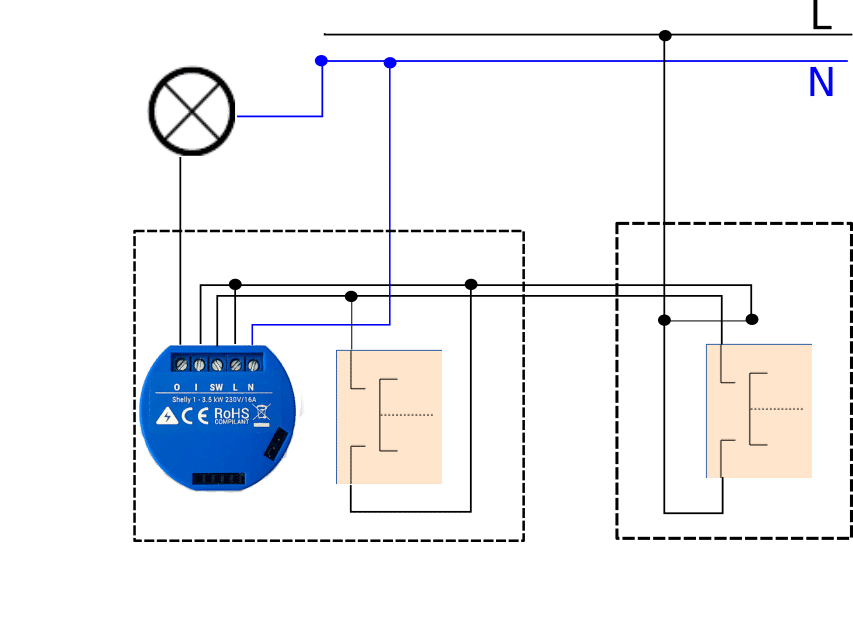
In this case, Shelly 1 BUTTON TYPE variable Momentary must be set to mode.
A further consideration of the above case, when we use conventional toggle switches instead of pushbuttons. The phase leading to the consumer must be in the smart relay junction box and the neutral conductor must also be drawn in here. The design in the other junction boxes is the same as that of traditional alternative switches. You can see the detailed circuit diagram here:
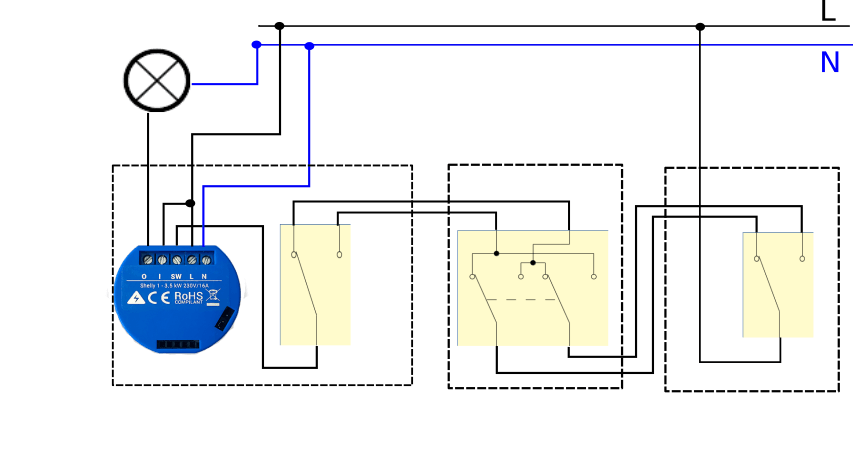
For this switch to work, Shelly 1 BUTTON TYPE value Toggle must be set to mode.
The essence of the code 102 two-pole, or also known as two-pole, connection is that it connects the neutral conductor in addition to the phase conductor. It is used to switch the lighting in wet or periodically wet rooms. In some cases, it is an important touch protection requirement, but its application is not mandatory in households. However, keeping in mind the integrity of the system, we specifically prescribe this way for electricians to connect consumers in wet rooms to Shelly. (Although the FI relay is designed for this purpose, it is generally better to respect the high current.)
Shelly 1 alone is not capable of breaking the two conductors, so we use a two-pole magnetic relay in the circuit, which is controlled by Shelly. The relay is of the NO (normally open) type, meaning it breaks both poles when out of control. You can see the implementation of the two-pole circuit with Shelly 1 and the magnetic relay here:
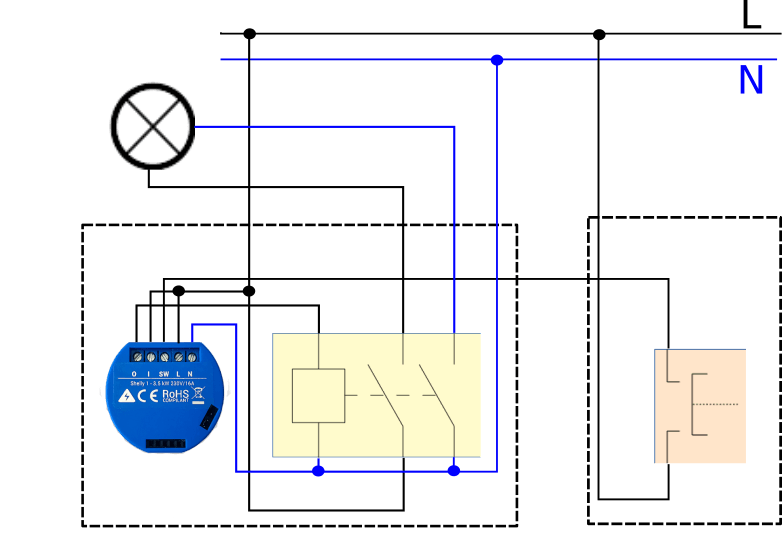
It is important to know that Shellys do not tolerate wet rooms well, so we recommend that these connections are made by professionals in an external junction box, and not inside the periodically wet room (bathroom, toilet, etc.). In this installation, we placed the Shelly on the DIN rail located on the switchboard, and then the two-pole magnetic relay next to it.
I won't go into the connection of the Shelly 2.5s separately, since they can be treated in the same way as two Shelly 1s. With this, we have discussed the connection of lighting circuits with Shelly. Let's move on to the shading technique!
Shading technology
In the case of switchable roller shutter motors, 2 phase wires need to be connected, the direction of the motor movement depends on which wire the phase is connected to. It is very important that only one wire has phase at a time, otherwise it will result in the motor failing. Since Shelly 1 only supports one switched branch, in this case only Shelly 2.5 can be used, which contains two relays, so it can control two separate circuits (down and up directions). It is very important that Shelly 2.5 is set to „Roller Shutter” mode during connection, otherwise the previously mentioned problem may occur and the motor will burn out.
You can see the wiring diagram of a normal switch-type roller shutter motor below. Many of you may wonder why we are talking about a switch-type drive when there are already radio and WiFi roller shutter drives on the market. Well, the answer is simple! With a switch-type motor, we have the freedom to maintain the reliability of manual control and, with Shellyk and other relays, we can also implement the convenience of wireless control without compromise. Let's get started, because the switching itself is probably more interesting than our principles.
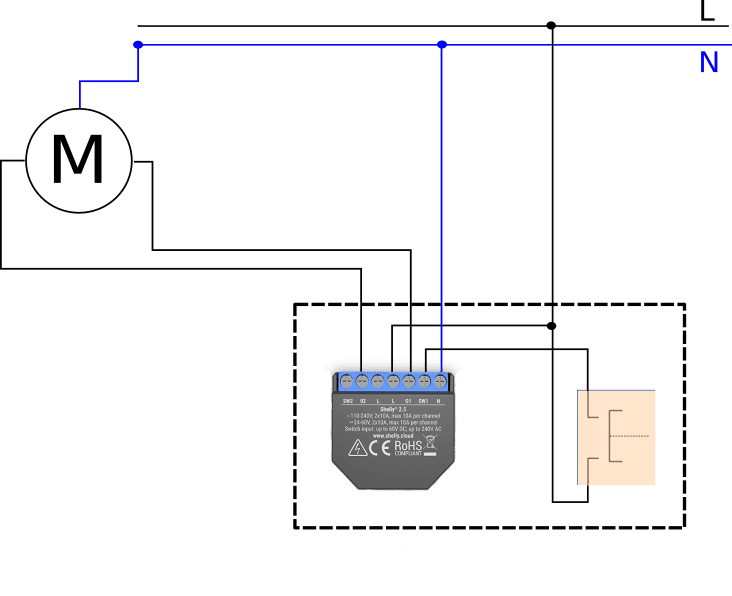
As you can see, in this connection we connected a simple push button to the input of the Shelly 2.5 switch. I won't go into detail again, but we actually prefer this solution because of the user experience and its simplicity. If you want an alternative connection here too, or even want to control the down and up directions from separate buttons, that can also be done in the following way:
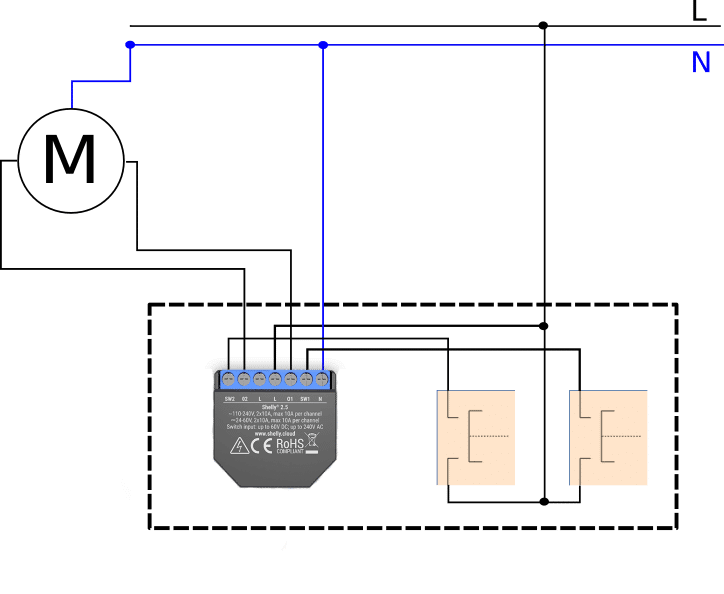
With this connection, we can set the function of the two buttons software-wise on the Shelly's own interface, or even via an API call.
When working with so many Shellys, configuring each device individually can be extremely time-consuming. There are many solutions for this on the Internet, but in the next section I would like to present a unique solution that Yabune Home offers to its installation partners, and hopefully in the future to end users, when configuring Shellys.
Configuring Shellys with Yabune Home
Overview
Although we believe in the flexibility and quality of Shelly devices, configuring dozens of devices during installation was time-consuming – Wi-Fi AP, MQTT server parameters, and setting up specific device configurations. That’s why we created a small program specifically for Shellys in our installation interface, which is extremely helpful when installing and commissioning a larger number of devices.
Although Shelly supports CoAP (Constrained Application Protocol), we primarily MQTT integration. You may ask why, but the answer is relatively simple. MQTT is a message handler optimized for IoT devices, which contains a lot of useful configuration options through which the reliability of the IoT network can be increased - just QoS and the Retain In addition, MQTT has long been a proven platform for integrating IoT devices, not only in Home Assistant, but also in other open source systems.
Let's take a look at how Shellys are configured in practice. Currently, the devices still have to be manually switched from AP mode to the local WiFi SSID, but we are working on solving this problem. Once the devices appear on your home Wi-Fi and receive their IP addresses, our system automatically finds and loads them and their corresponding configuration.
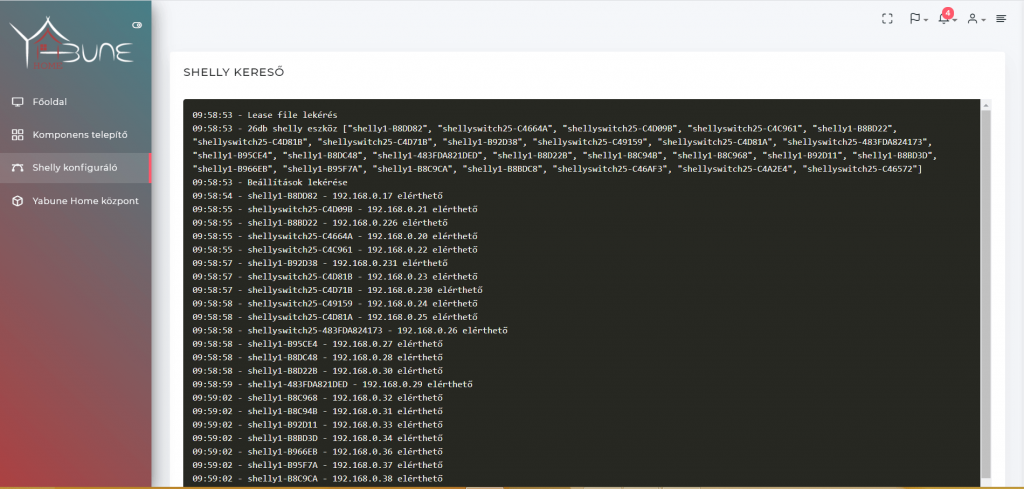
It is important to note that if not availableIf some devices appear, we always check it, because it is possible that the Wi-Fi coverage is insufficient or the relay has been disconnected.
Since all devices are loaded and the 26 recognized devices are correct, the MORE By clicking the button, the configurator itself opens, where you can modify Shellyk's settings individually or even in batches.
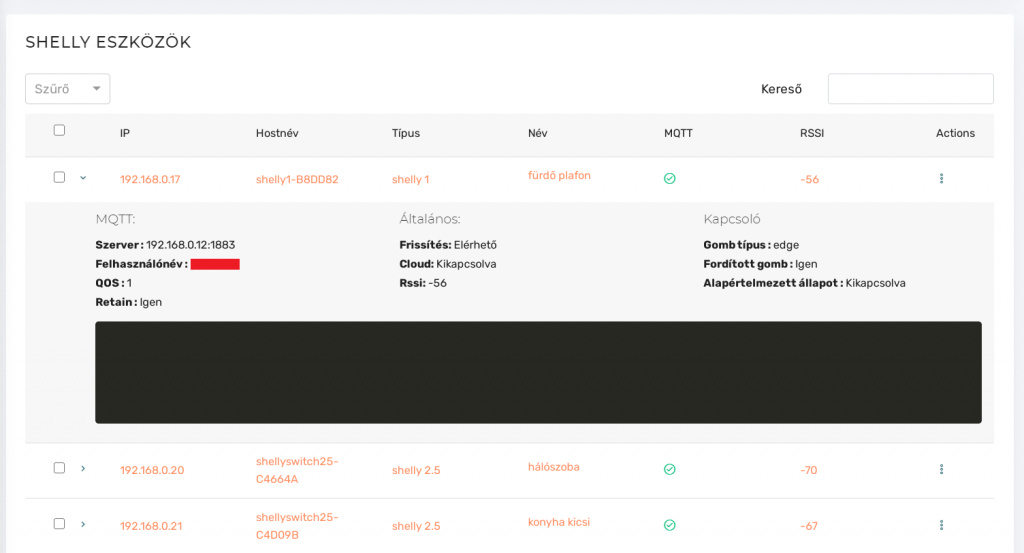
The image above clearly shows the most important parameters that are displayed for each Shelly. The names of the columns are basically self-explanatory. Where some explanation is needed is the RSSI, which shows the current signal strength of the Wi-Fi device (dBm), and the Actions menu item, which we will discuss in more detail below.
Clicking on a specific Shelly device displays even more details - including the MQTT server parameters, whether the device has an update available (if so, it is highlighted in orange), the status of the Shelly cloud service, and various device-specific settings, such as the button type.
Setting
Let's take a closer look at the options available to us when opening the Actions menu:
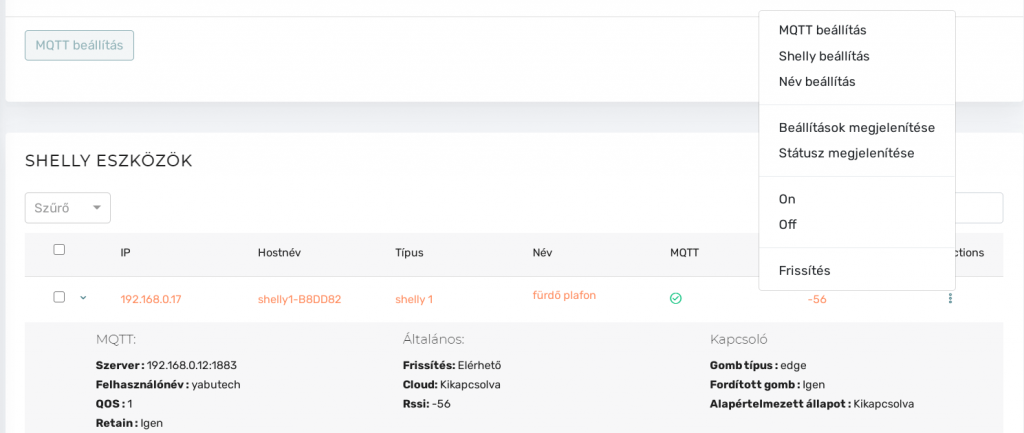
In this menu, we can individually set the availability of the MQTT server, the function parameters of the given Shelly device, and we can also give our device a name, thus helping with the overview.
The On and Off options allow you to test the operation of a given device without the app or Home Assistant. This can be extremely useful during installation.
Shellys provide a lot of useful information about themselves via a REST API, which can be queried using the Settings and Show Status buttons. You can see an example of these below:
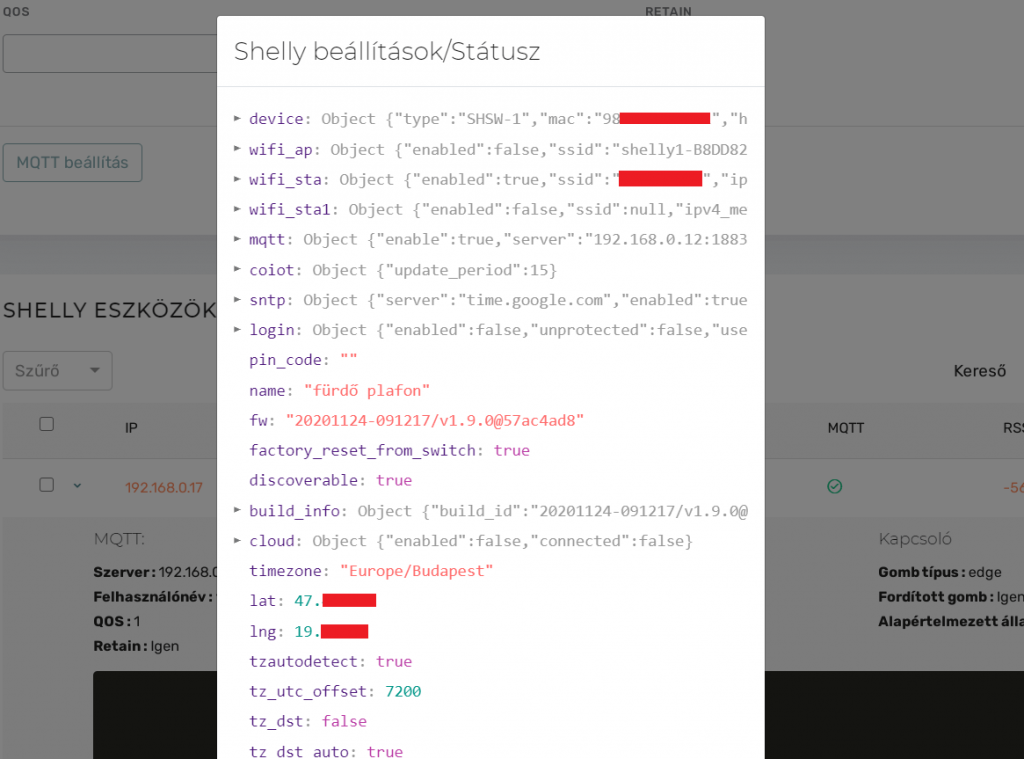
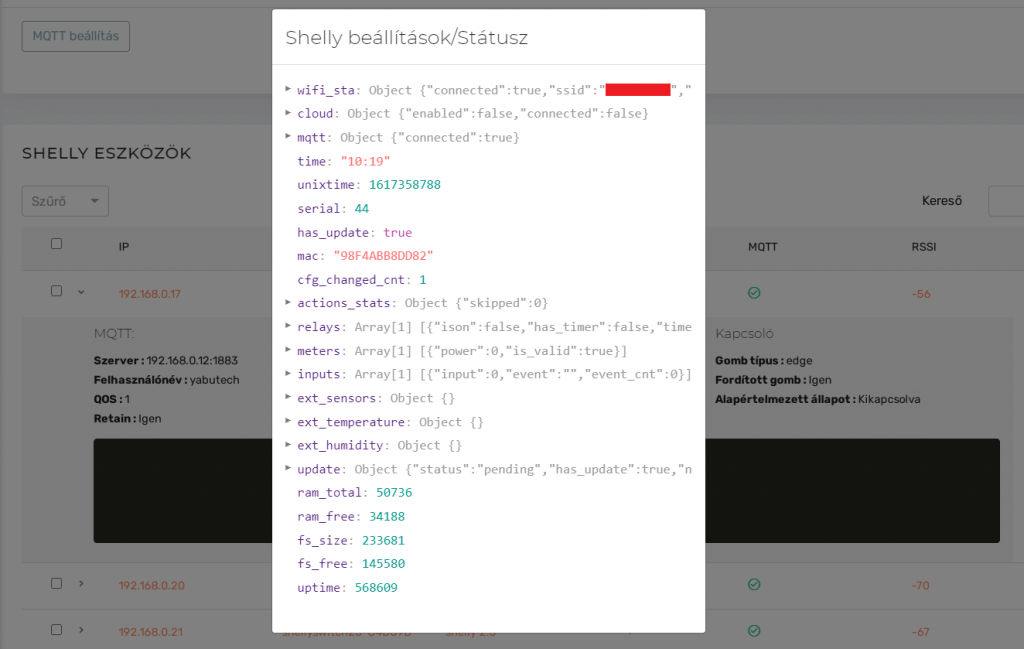
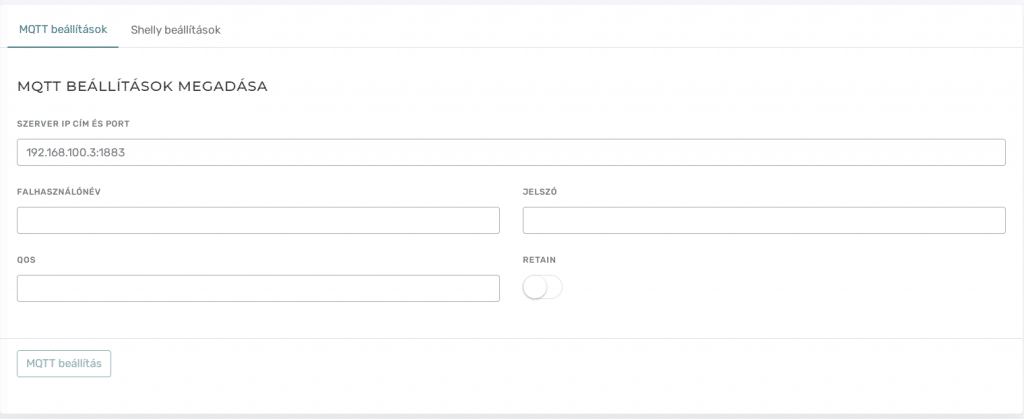
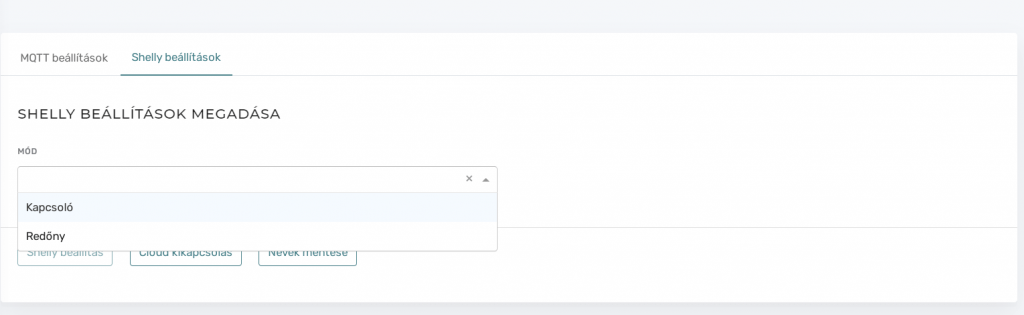
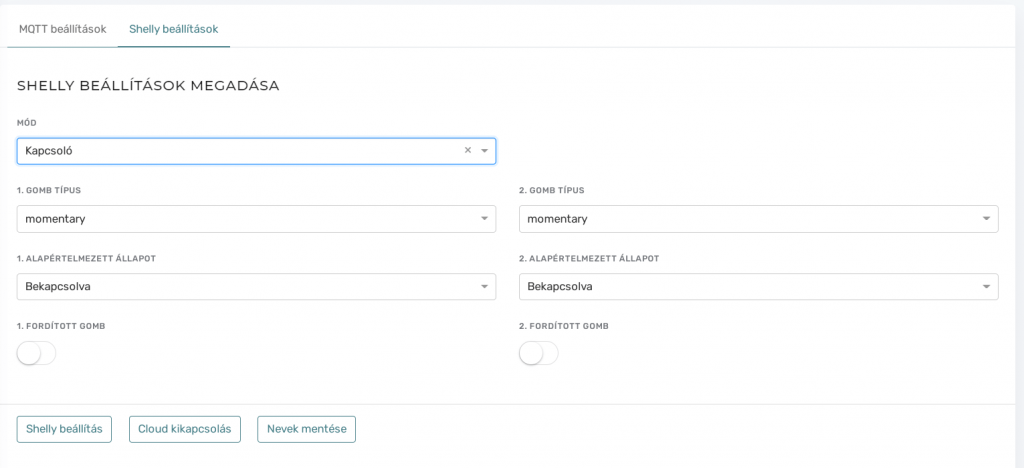
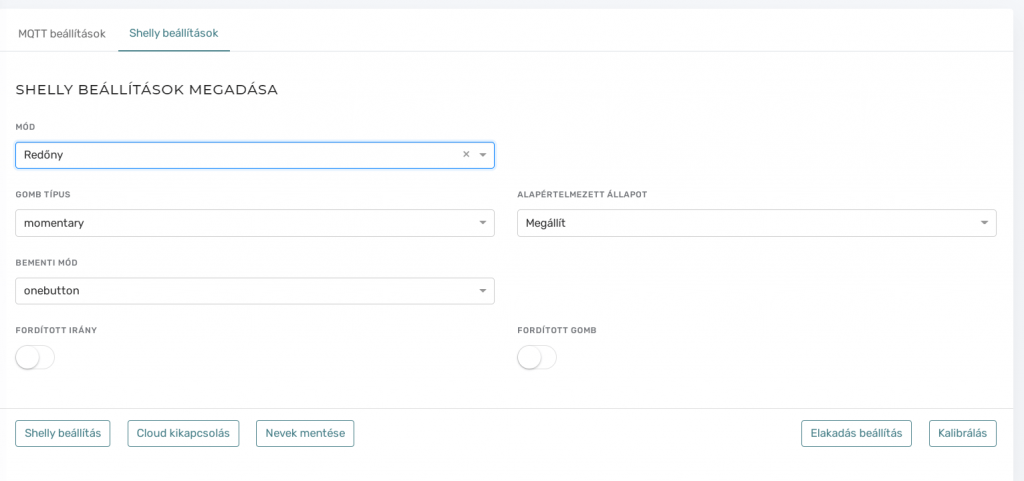
This is all well and good, but if we can only set up Shellys individually, we could do it from the app. That's why we made it possible to manage Shellys individually or in batches, like for example when setting up the MQTT server, which is the same for all devices, so you only need to apply it once, as it will be activated on all Shellys. It is also possible to choose the type of buttons and the function of the relay. However, a picture is worth a thousand words, so we would rather use these to demonstrate the options:
The installation
Now that all Shellys are properly configured and named, we can proceed with the installation on the Home Assistant side. Although there is an official integration using CoAP, we are sticking with MQTT for now, as it has proven to be reliable and reliable for us. The CoAP integration recently broke in one version, and although the community quickly fixed it, our policy is not to change the proven recipe without reason, so we will wait until the official integration reaches the maturity level we require. For this reason, we continue to use YAML file configuration for certain components, and this is also implemented in our installer interface.
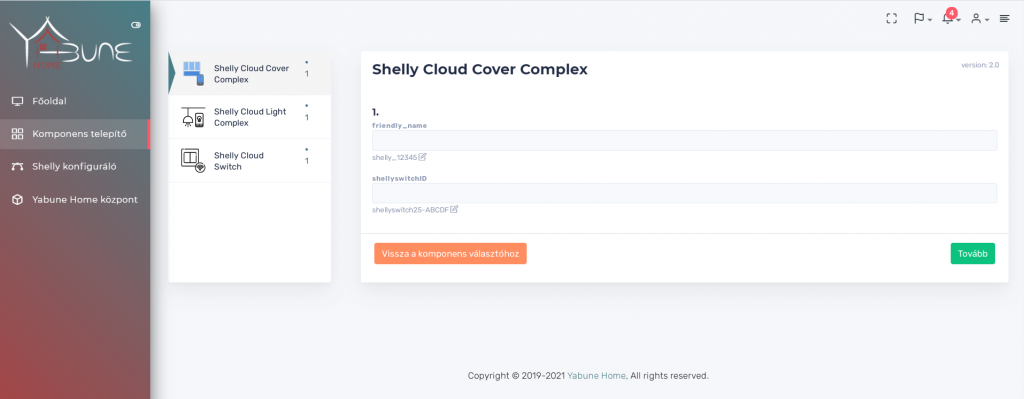
Since this post is a bit long, we will cover the installation process in a future blog post. The system is under continuous development and testing, and we want to make it available to everyone in the long term, but in the meantime, we want to plan more and more new features.
If you are interested in what we represent and in what direction we want to take our company and Yabune Home products, I definitely recommend that you watch the presentation video presented at the Smart Home Expo by our founding owners!