This page is for Yabune Home customers: here you will find the most common tasks — logging in, installing the app on a new phone, adding a new user, checking connection settings, and reporting errors. If something is missing, write to [email protected] .
- Logging into your system
- Install the Home Assistant app on a new phone
- Add a new user
- Check the application's connection settings
- Bug report
Logging into your system
Your smart home can be accessed from both the browser and the app at the same address: https://[rendszernév].yabune-home.hu/ — you received the system name when you transferred it. If you can't find it, write the [email protected] address and we will write it.
Always log in with the username and password you were given when you were given the pass or the one you created yourself. On the login screen, check the „"I'll stay logged in"” option so that you don't have to re-enter it every time.
Install the Home Assistant app on a new phone
When changing phones or using a new family member's phone, it's worth following the sequence below. The most common mistake is that the first setup is done on home WiFi — in this case, the application only remembers the internal address and cannot access the system when you leave home.
- Download the Home Assistant application: Google Play · App Store.
- At first startup turn off wifi, and log in via mobile network — this will add the external address to the app.
- The address of the smart home is the same as in the browser: https://[rendszernév].yabune-home.hu/
- Allow everything the app asks for (notifications, location) — these are needed for alerts and home/away detection.
- Log in with your own username and password and check the "Stay signed in" option.
- At home, on wifi, check the connection settings also (below).
Add a new user
It's a good idea to give each family member their own login — this way they can receive separate notifications and see who's home and when. You can add a new user from an account with administrator rights.
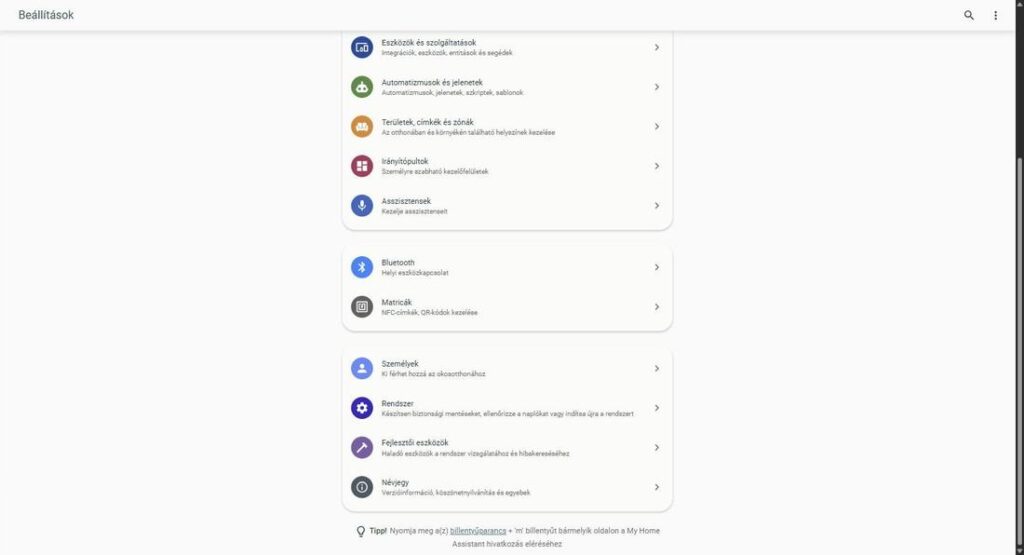
- Log in to your system and click on the gear at the bottom of the left menu: Settings.
- Scroll down and select Persons menu item („Who can access your smart home”).
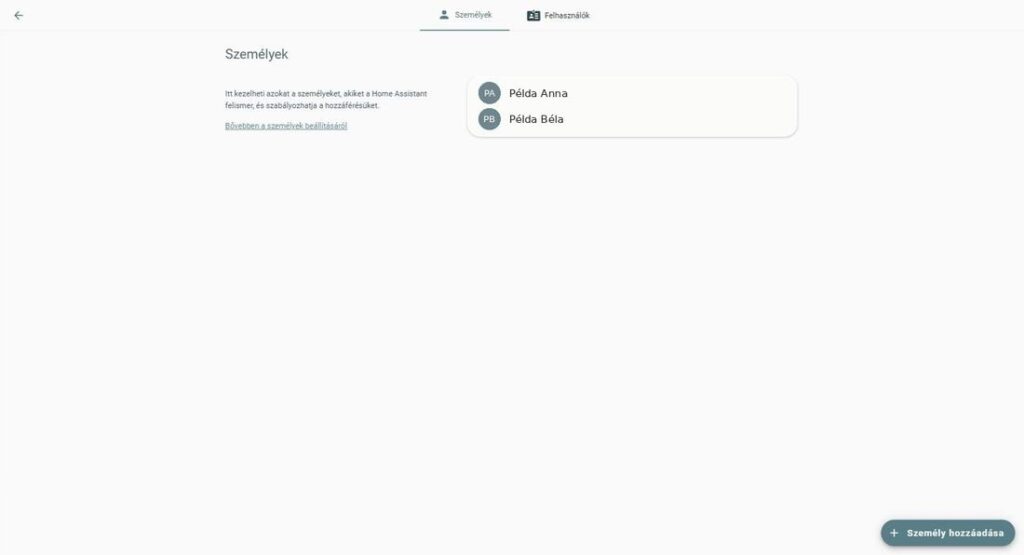
- Press at the bottom right + Add person button.
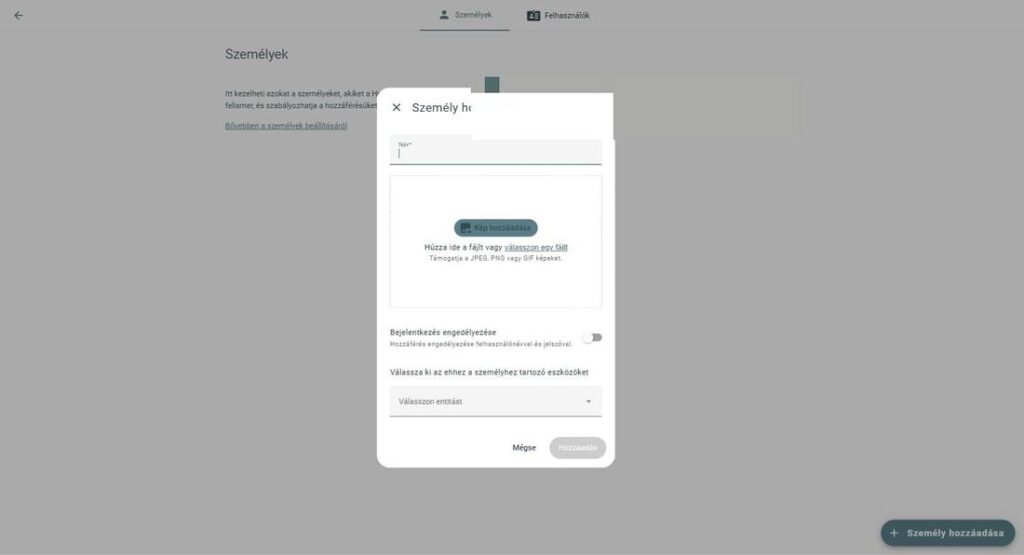
- Enter the name and turn on the „"Allow login"” switch — without it, the person is only included in the presence tracking, they cannot enter.
- Enter a username and password. The administrator rights only turn it on if the person will also change the settings — it's not necessary for everyday use.
- Add — done. The new user can install the app on their own phone using the steps above.
Check the application's connection settings
Your smart home can be accessed in two ways: from home via the internal (local network) address, and from elsewhere via remote access to Yabune. If both the internal address and the home wifi name are set in the app, the system works from home even if remote access is temporarily down. It's worth checking this once on every phone the app is running on.
- In the application: Settings → Companion app (Android) or Settings → Companion App (iPhone).
- At the top of the list is your system name — tap it.
- Check that the Internal link URL (Internal connection URL) is filled in.
- On Android, check Home network Wi-Fi SSID field — this is where the name of your home WiFi is placed.
If any field is empty or you are unsure of the value, write the [email protected] address — we will write what to enter. Don't guess: if the internal address is wrong, the application will not be able to access the system at home.
Bug report
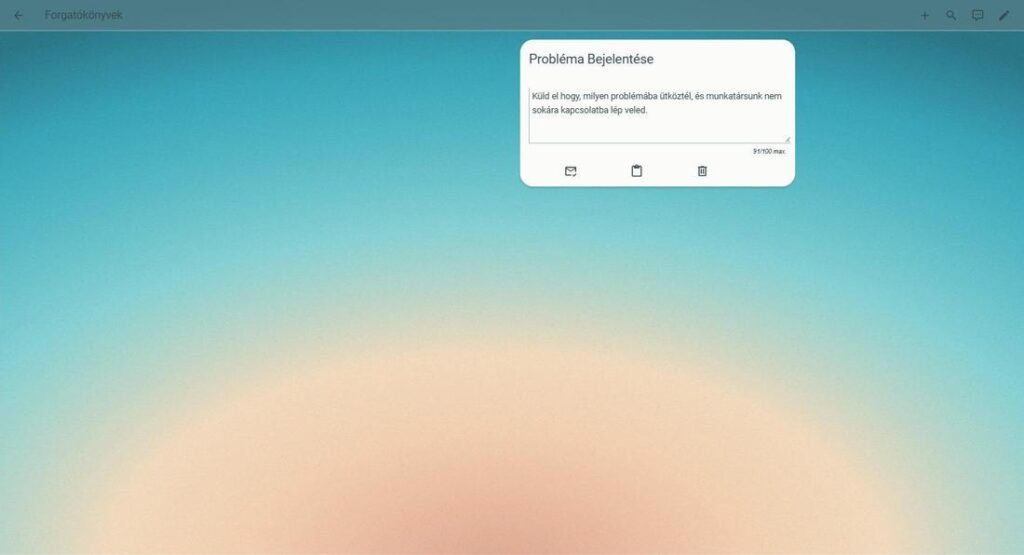
If something isn't working as it should, the fastest way is through the built-in notification in your system: the signal goes directly to our bug ticket system and our staff will contact you.
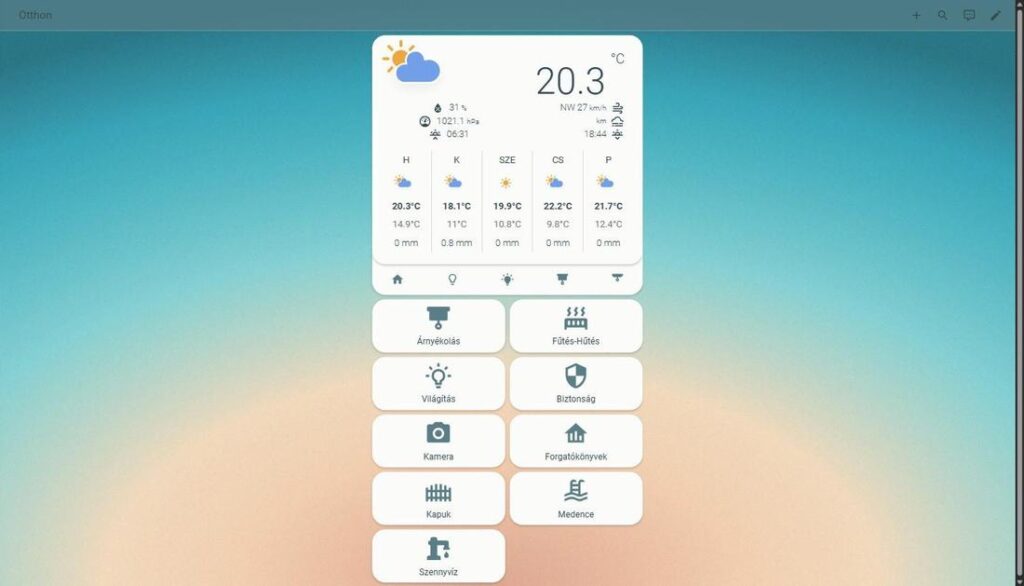
- On the home screen, tap Scenarios on the tile.
- The Report a problem In the field, briefly describe what you are experiencing — what is not working, since when, and in which room (maximum 100 characters).
- Tap the sending (envelope) icon.
If you can't reach the interface itself, or would like to send a longer description or picture: [email protected]. In the subject line of the email, write the name of your system, and in the body, state what is not working, how long ago, and whether you tried it from home or remotely.
Do you have a question?
We have a single address for our customers, this is the fastest for all questions: [email protected]. Error with the above reporter, everything else by mail.
I am writing to support.